
Filter Command
It's come to my attention that there are many players who either don't know of this command or having issues in getting this command to work properly. So with this in mind I've decided to create a little guide in hopes of clearing up some confusing players may be having and show the proper way to do it. This command allows players to filter out certain items that a player does not wish or wishes to have in their inventory, which in result makes scooping up loot from the floor that much easier and quicker. I will be showing a step-by-step process with visuals to help as well.
Process
Step 1
For the purpose of this demonstration, I will be showing the blacklist option (Ignores items not listed)
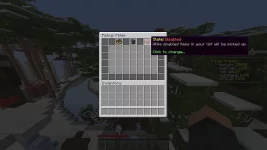
Type /pickupfilter and a gui should pop up on your screen.

Step 2
To add an item, click the anvil in the middle.
Step 3
Type in the item that you want to filter out. As of now you can only list the following items:
Iron Helmet | Iron Chestplate | Iron Leggings | Iron Boots | Iron Sword | Bow | Golden Apple | Glass Bottle | Fishing Rod | Diamond Helmet
Diamond Chestplate | Diamond Leggings | Diamond Boots| Diamond Sword | Arrows |
Note: Type in the items the way presented above, adding underscores or dashes in between words will not work.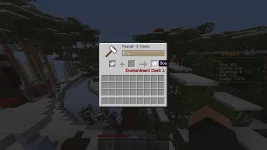
Step 4
After picking out the items you want to filter out, hover over the red clay on the top right corner of the gui and click to enable
After clicking the block should appear green.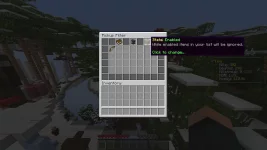
Step 5
After enabling, hover over to the book, at first it should appear as "Whitelist" which will pickup what you listed. Since we went through the steps to filter out items we must click the book to change it to "Blacklist" which will ignore the items that you have listed.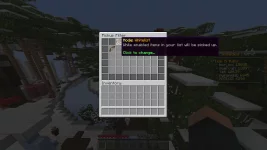
After clicking the book should show up as "Blacklist"

Step 6
Test it out! Items listed should now be ignored and will be unable to be picked up.
NOTE: If you wish to use the whitelist option which was stated above to only pick up items you want, go through the process again, but this time type in items you want to pickup. Any other items not listed will not be picked up.
I hope this clears out any confusion and helps the community out a little bit!
~Twisst
It's come to my attention that there are many players who either don't know of this command or having issues in getting this command to work properly. So with this in mind I've decided to create a little guide in hopes of clearing up some confusing players may be having and show the proper way to do it. This command allows players to filter out certain items that a player does not wish or wishes to have in their inventory, which in result makes scooping up loot from the floor that much easier and quicker. I will be showing a step-by-step process with visuals to help as well.
Process
Step 1
For the purpose of this demonstration, I will be showing the blacklist option (Ignores items not listed)
Type /pickupfilter and a gui should pop up on your screen.
Step 2
To add an item, click the anvil in the middle.
Step 3
Type in the item that you want to filter out. As of now you can only list the following items:
Iron Helmet | Iron Chestplate | Iron Leggings | Iron Boots | Iron Sword | Bow | Golden Apple | Glass Bottle | Fishing Rod | Diamond Helmet
Diamond Chestplate | Diamond Leggings | Diamond Boots| Diamond Sword | Arrows |
Note: Type in the items the way presented above, adding underscores or dashes in between words will not work.
Step 4
After picking out the items you want to filter out, hover over the red clay on the top right corner of the gui and click to enable
After clicking the block should appear green.
Step 5
After enabling, hover over to the book, at first it should appear as "Whitelist" which will pickup what you listed. Since we went through the steps to filter out items we must click the book to change it to "Blacklist" which will ignore the items that you have listed.
After clicking the book should show up as "Blacklist"
Step 6
Test it out! Items listed should now be ignored and will be unable to be picked up.
NOTE: If you wish to use the whitelist option which was stated above to only pick up items you want, go through the process again, but this time type in items you want to pickup. Any other items not listed will not be picked up.
I hope this clears out any confusion and helps the community out a little bit!
~Twisst