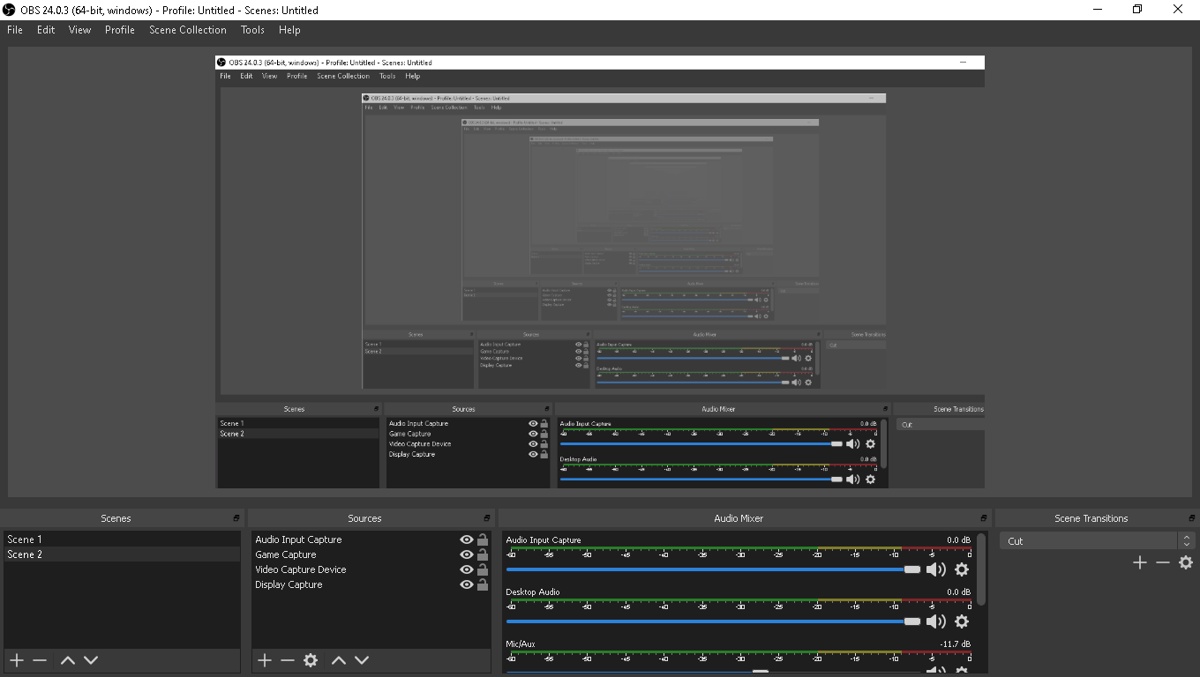

Hi, I don't know if this is the correct section for this thread, but I thought it could be helpful. I have recently seen a lot of threads complaining about false bans, bug reports, and other situations where this could be useful, such as recording evidence of a player cheating for a player report. I personally use OBS (Open Broadcaster Software) to be able to record past gameplay. You can download OBS here.
While you can just record all of your gameplay at all times, that can be intensive on your computer. I have found that using the "Replay Buffer" is useful. To get your OBS setup, there is a ton you can do, but these are the basics for getting the Replay Buffer Working.
I am doing this on a Windows OS, so the steps may vary from other platforms.
Initial Setup
If you encounter any issues when setting this up, either google them or send me a DM, and I will try to help.
While you can just record all of your gameplay at all times, that can be intensive on your computer. I have found that using the "Replay Buffer" is useful. To get your OBS setup, there is a ton you can do, but these are the basics for getting the Replay Buffer Working.
I am doing this on a Windows OS, so the steps may vary from other platforms.
Initial Setup
- Download and Install OBS Here.
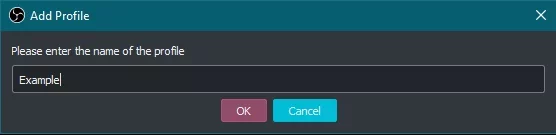
- Once you get it open, click on
ProfilethenNew. For this example, I will be calling it "Example," but you can call it whatever you like. - You now need to create a way to actually record your gameplay. To do this, create a new "Scene," and call it something like Minecraft. To do this, click the little "+" below the Scenes area.
- Now that you have your Scene for Minecraft, you actually have to record your gameplay. Create a new "Source" and call it whatever you like. For this example, I am choosing the name "Minecraft Game."
- For the Source Type, I typically pick "Game."
- You should get a window that has the Properties for that Source.
- I set my Mode to "Capture any fullscreen application," however this may differ depending on how you play MC. You can always just capture the specific game window instead.
- Now that you have your scene set up when you open the game, you should be able to see yourself in the little preview window.
- Open your settings by clicking the
Settingsbutton. - Navigate to
Output, and change your output mode from Simple to Advanced. - Next, go to the
RecordingTab and change all of the settings how you would like them. Most aren't important, but you should change your recording path to something you will be able to remember. This is where your replays will be saved. If you are unsure about the other settings, either leave them blank or google "Best OBS Recording Settings," and a ton of video guides will come up. - Next, navigate to the
Replay BufferTab and Check the box to enable it. I set the Maximum replay time to 120 seconds, but pick something that you think will work. - Finally, go to your
HotkeysSection on the left and change your hotkey for saving a replay buffer.
Start Replay Buffer button. You are all set up to be able to record quick replays of your gameplay. Now if you see someone cheating or breaking a rule, you get banned unfairly, or you find a glitch, hit that replay buffer key, and it will record the replay time that you set. You can then upload this and use it as your evidence of someone cheating, evidence that you were banned unfairly, or evidence/steps to replicate a glitch. If you encounter any issues when setting this up, either google them or send me a DM, and I will try to help.